
How to add a missed drive to your mileage log
When automatic capture skips a trip — forgotten phone, rental car, dead battery — how to add it so the log still has date, places, miles, and purpose.
When a drive is missing
MileClerk is built around automatic background capture: you drive, and trips show up in All Drives for classification. That still leaves a handful of real-world gaps. The phone stayed on the kitchen counter. The battery died mid-day. You took a rental, a spouse's car, or a ride where your phone wasn't the one moving. Location permission was off for an afternoon.
Add a drive is the safety net for those trips — not a replacement for background capture, and not a way to rebuild a year of mileage from memory at tax time. Use it when you know a specific trip happened and GPS didn't log it.
How to add it
You need to be signed in and online. The + button lives on All Drives and stays hidden while the list can't reach the cloud.
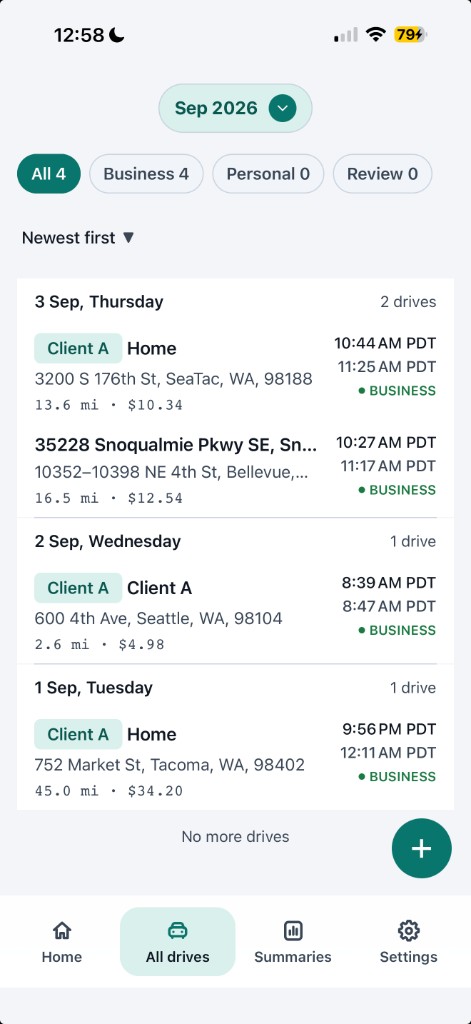
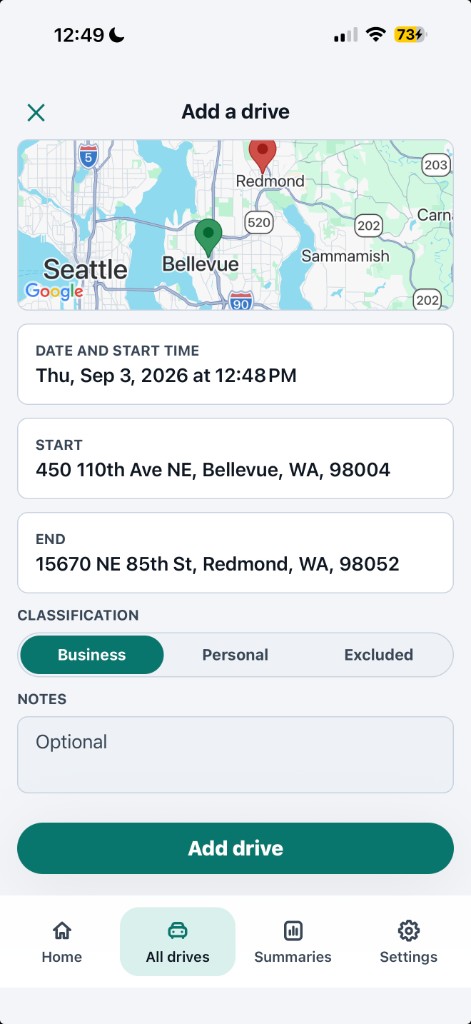
1. Open All Drives and tap the + button (Add a drive).
2. Set the date and start time. End time is estimated for you; you can edit it if you remember when the trip actually ended.
3. Tap Start, then End. Pick a saved place (Home, Work, a client site) or type an address, tap Look up address, confirm the match on the map preview, and tap Use this location.
4. Choose a purpose: Business, Personal, or Excluded. Start, end, and purpose are required.
5. Optionally add notes, parking, and tolls. Miles fill in from the start and end points as a straight-line estimate — edit the number if you know the actual distance.
6. Tap Add drive. You'll see Drive added with a View action that opens the new row.
What gets saved
The new row is a complete cloud drive, labeled Manually added. It is not a reconstructed GPS trace. It still carries the pieces a mileage log needs: date, start and end locations, distance, and business purpose. See how to keep a mileage log for taxes for what substantiation generally requires.
If you classify the trip as business, it counts toward trusted totals once it's complete — the same rule as an automatically captured business drive. Personal and excluded trips stay in the log at $0. A CSV export includes the row with the rest of your drives.
When not to use it
Don't use Add a drive to reconstruct months of forgotten trips at filing time. IRS contemporaneous-record rules expect you to log travel close to when it happened. A handful of known misses is the job; a reconstructed year is not.
Check All Drives first so you don't double-add a trip that capture already logged. If GPS recorded a movement that wasn't a real drive — a train ride, a walk that looked like a hop — open that row and mark it Excluded. Don't add a second drive on top of it.
Frequently asked questions
Can I add a trip if I forgot my phone?
Yes. Open All Drives, tap Add a drive, set the date and start time, pick start and end locations, and choose Business, Personal, or Excluded. You need to be online to save it. The new row is labeled Manually added.
Does a manually added drive count like an automatic one?
Yes, once it's saved. A manually added drive is a complete cloud record with date, locations, miles, and purpose. If you classify it as business, it counts toward trusted totals the same way an automatically captured business drive does. It also appears in a CSV export.
Why don't I see the + button?
Add a drive is available on All Drives when you're signed in and online. If you're offline or signed out, the + button is hidden until the list can reach the cloud again.
This is general information, not tax advice. Consult a qualified professional for your specific filing decisions.
Track it automatically instead.
MileClerk logs every drive in the background, classifies it with a reason, and leaves only the uncertain ones for you to review.


Free — no credit card, no trial.